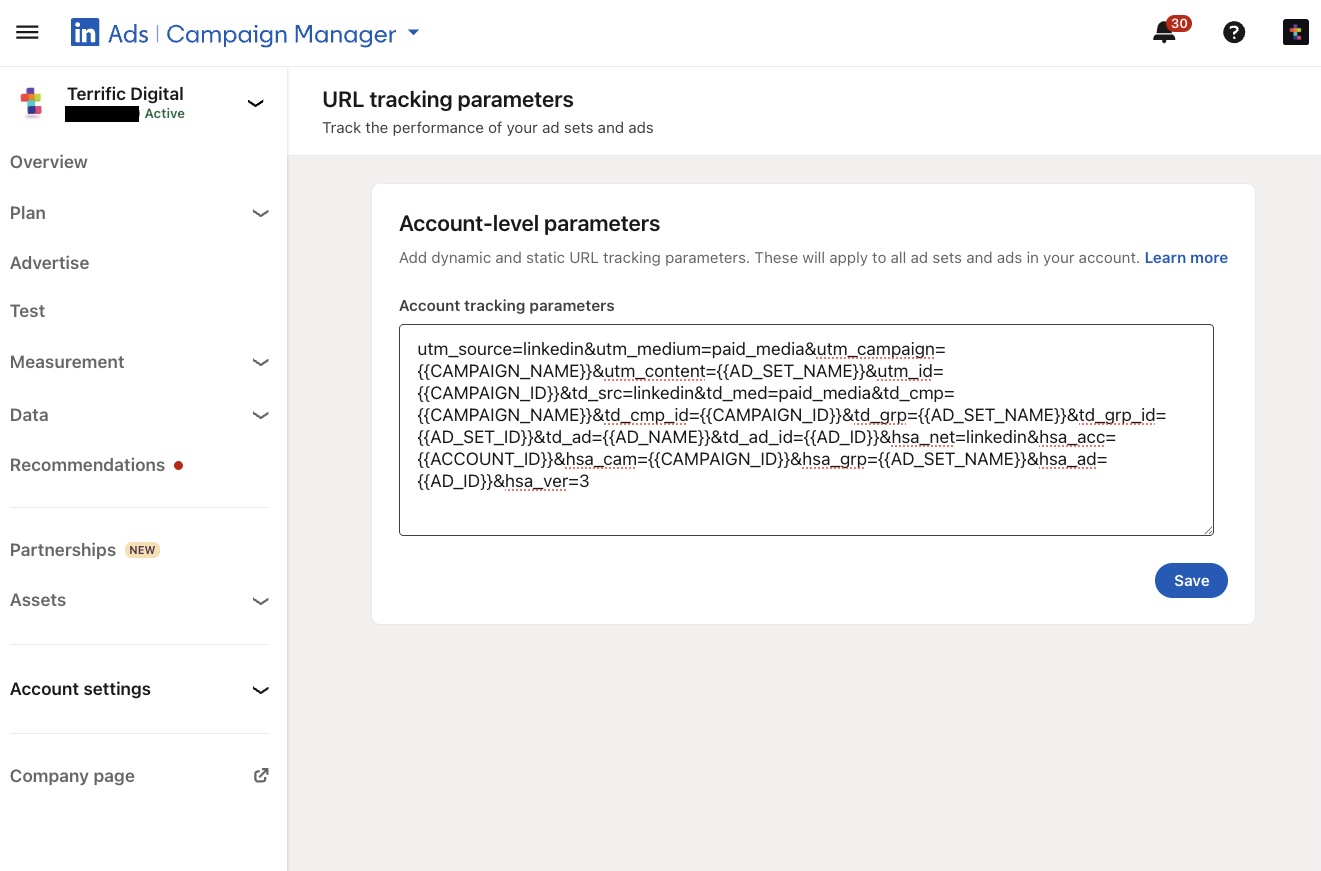


First, we need to clarify - If you’re using HubSpot’s new multi-step v4 forms, this solution will not work.The reason is that v4 forms load inside an iframe, which completely isolates the form from any page-level JavaScript - including scripts deployed via GTM. If that’s what you’re working with, check out our dedicated guide here: How to Populate Hidden Fields in HubSpot v4 Forms.
This article is for HubSpot legacy forms only - the older embed type that can be rendered as raw HTML directly in your page’s DOM. This method works because your GTM-injected JavaScript can directly access and edit the form fields, including hidden fields.
Why Raw HTML Is Required
By default, HubSpot embeds forms in an iframe. This blocks page-level scripts from:
- Accessing the form’s DOM (due to browser cross-domain restrictions).
- Updating field values in real time.
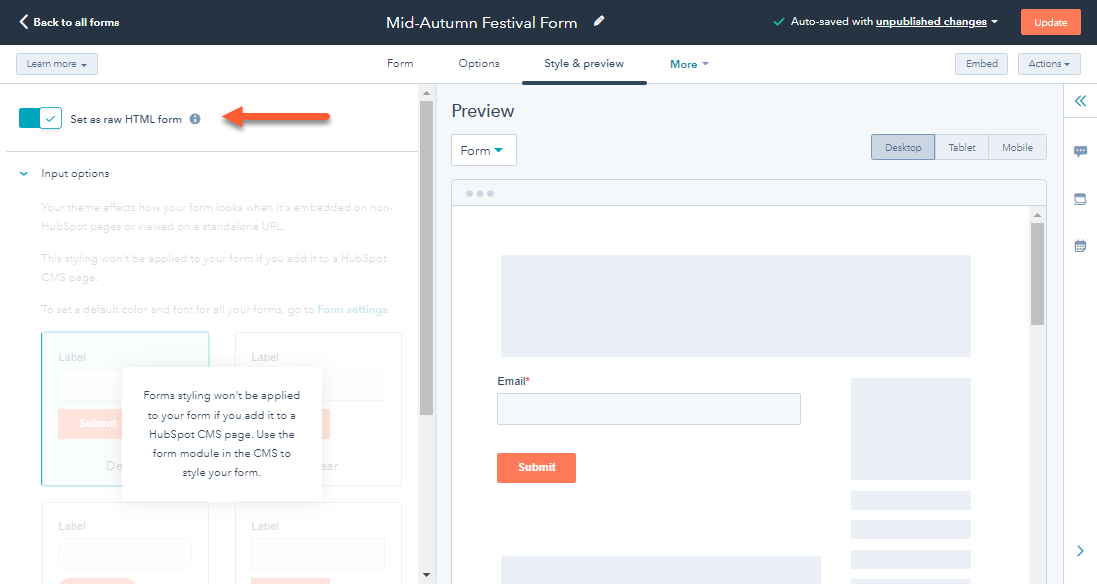
When you choose Set as raw HTML form:
- The form is part of the main page’s HTML.
- Your GTM script can locate and update hidden fields.
Note: Raw HTML forms won’t inherit HubSpot’s default styling, so you’ll need to add your own CSS to make them look consistent with your site. You can read more about it on HubSpot's website.
The Script
Here’s the script you should add to a Custom HTML Tag in Google Tag Manager:
<script type="text/javascript">
// HubSpot Legacy form fields populator - by Terrific Digital
function populateUtm(param, value) {
  param = param.toLowerCase();
  var input_field = document.querySelectorAll('input[name=' + param + ']');
  if (input_field.length !== 0) {
    input_field.forEach(function (element) {
      element.setAttribute("value", value)
      console.log("✅ Hidden field '" + param + "' was populated with the value of '" + value + "'");
    });
  } else {
    console.log("❌ Hidden field '" + param + "' was not found on the page.");
  }
}
console.log("HubSpot Legacy form is visible");
// Replace with your actual field name and value
populateUtm('HIDDEN_FIELD_NAME', 'HIDDEN_FIELD_VALUE');
</script>
How to Implement in Google Tag Manager
In HubSpot
- Create/edit your form.
- Select Set as raw HTML form.
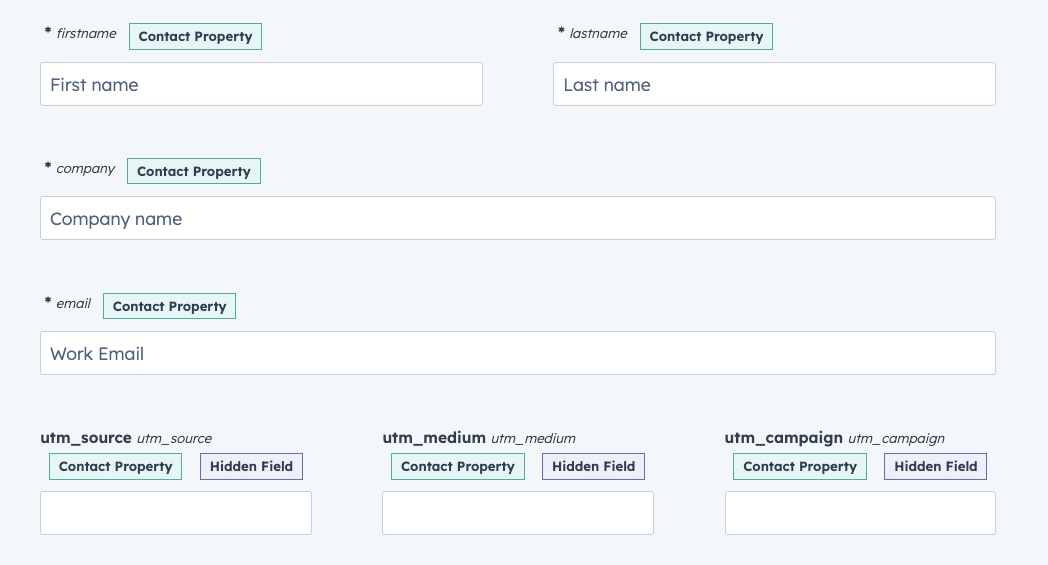
- Add your hidden fields.
In Google Tag Manager
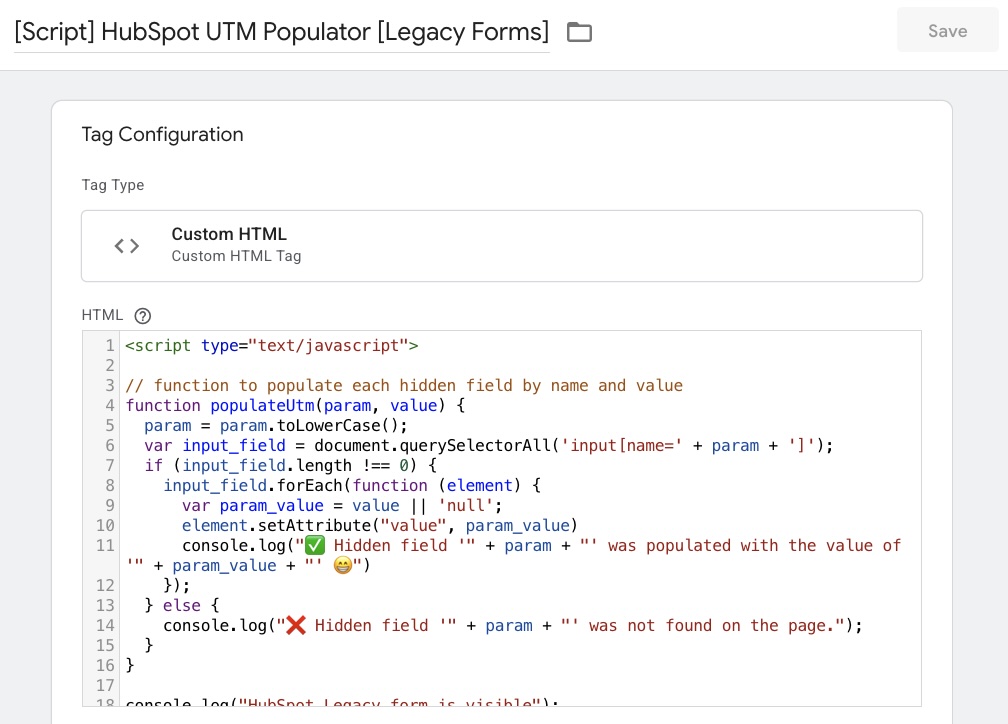
- Create a Custom HTML Tag with the script above.
- Replace ‘HIDDEN_FIELD_NAME’ with your actual field name, for example ‘utm_source’.
- Replace ‘HIDDEN_FIELD_VALUE’ with a dynamic GTM variable (e.g., {{UTM Source}}).
- Repeat the “populateUtm()” function for every hidden field you’re trying to populate with a value.
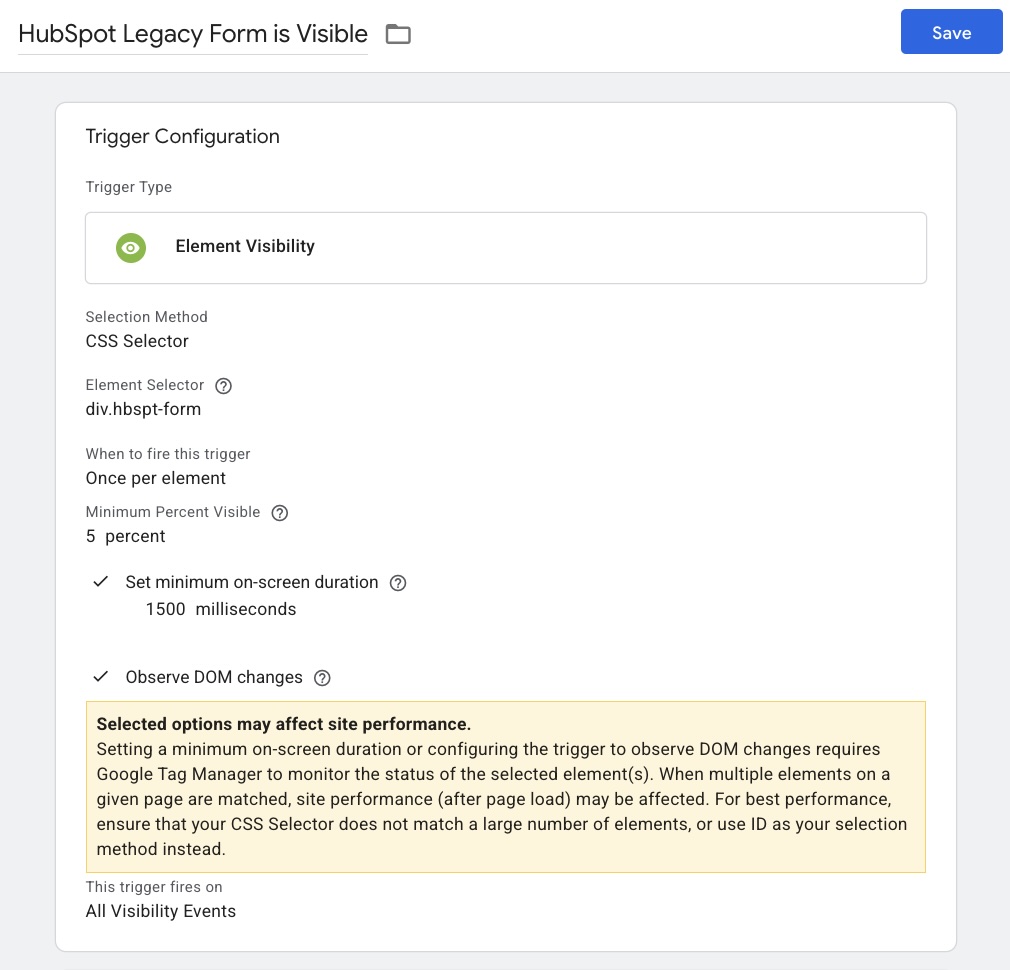
Trigger this tag when a HubSpot form is visible, you can do that by:
- Choosing “Element Visibility” as the trigger type.
- Selecting “CSS Selector” as the selection method.
- Entering “div.hbspt-form” as the element selector.
- Choosing “Once per element” in the “When to fire this trigger” setting.
- Setting the “Minimum Percent Visible” to “5” percent.
- Setting the “minimum on-screen duration” to “1500” miliseconds.
- If you forms that might appear after the page is loaded, for instance, in popups or lightboxes, also be sure to check the “Observe DOM changes” checkbox.
- Name this trigger “HubSpot Legacy Form is Visible”.
Use GTM Preview to confirm the script runs and values populate.
Example: Using GTM Variables for UTMs
If you already store UTMs in GTM variables:
populateUtm('utm_source', '{{UTM Source}}');
populateUtm('utm_medium', '{{UTM Medium}}');
populateUtm('utm_campaign', '{{UTM Campaign}}');
Summary
- Works only with HubSpot Legacy raw HTML forms.
- Won’t work for v4 iframe-based forms – see our v4 guide here.
- Lets you populate hidden fields from GTM without changing site code.
- Great for UTMs, click IDs, and referrer tracking.