

If you’re using HubSpot Forms on your website, you might have noticed there’s now a relatively new form type, allowing for the visual creation of multi-step forms. The old form type we’ve all been using is now labeled as “legacy”:
If you’re using HubSpot’s older legacy forms instead of v4, check out our full guide here: Tracking Legacy HubSpot Form Submissions.
The new v4 forms are great – they let you create multi-step forms with a more modern look and feel. But if you’ve been using Google Tag Manager to track form submissions, you might have run into a problem:
your old tracking scripts for legacy forms no longer work here.
Why?
HubSpot v4 forms use a different event system. The familiar “onFormSubmit” listener from the legacy forms isn’t triggered anymore, so GTM doesn’t know when a submission happens. And if you’re working with multi-step forms, you might also want to know when a user moves from one step to the next.
Our Terrific Solution
Last week, we solved this for a client by writing a simple listener that:
- Captures successful form submissions
- Captures step navigation events in multi-step forms
- Pushes both into GTM’s “dataLayer” with all the form field values
The Listener Script
- Go to your Google Tag Manager web container.
- Add a new “Custom HTML” tag.
- Name it something along the lines of: “[Listener] HubSpot v4 Forms DataLayer Events“.
- Trigger this tag on all pages (or only pages that contain these types of forms).
- Copy the following script and save your new tag:
<script type="text/javascript">
// HubSpot v4 form submission listener - by Terrific Digital
	document.addEventListener('hs-form-event:on-submission:success', function (event) {
		try {
			var form = HubSpotFormsV4.getFormFromEvent(event);
			if (!form) {
				console.error("No form found.");
				return;
			}
			var submissionId = form.getConversionId() || '';
			var formId = event.detail.formId || '';
			form.getFormFieldValues().then(function (formFields) {
				var formData = {};
				for (var i = 0; i < formFields.length; i++) {
					var field = formFields[i];
					var field_value = field.value;
					if (typeof(field_value) === 'object') field_value = field_value[0];
					var cleanFieldName = field.name.replace(/^0-1\//, '');
					formData[cleanFieldName] = field_value || '';
				}
				window.dataLayer = window.dataLayer || [];
				window.dataLayer.push({
					'event': 'form_submission',
					'form_type': 'HubSpot Form v4',
					'form_id': id,
					'submission_id': submission_id,
					'submission_data': data
				});
			}).catch(function (error) {
				console.error('Error fetching form fields:', error);
			});
		} catch (error) {
			console.error('Error setting up form event listener:', error);
		}
	});
  // multistep hubspot form step listener
	document.addEventListener('hs-form-event:on-interaction:navigate', function (event) {
		try {
			var form = HubSpotFormsV4.getFormFromEvent(event);
			if (!form) {
				console.error("No form found.");
				return;
			}
			form.getFormFieldValues().then(function (formFields) {
				var formData = {};
				for (var i = 0; i < formFields.length; i++) {
					var field = formFields[i];
					var field_value = field.value;
					if (typeof(field_value) === 'object') field_value = field_value[0];
					var cleanFieldName = field.name.replace(/^0-1\//, '');
					formData[cleanFieldName] = field_value || '';
				}
				window.dataLayer = window.dataLayer || [];
				window.dataLayer.push({
					'event': 'form_step',
					'form_id': event.detail.formId,
					'submission_data': formData
				});
			}).catch(function (error) {
				console.error('Error fetching form fields:', error);
			});
		} catch (error) {
			console.error('Error setting up form event listener:', error);
		}
	});
</script>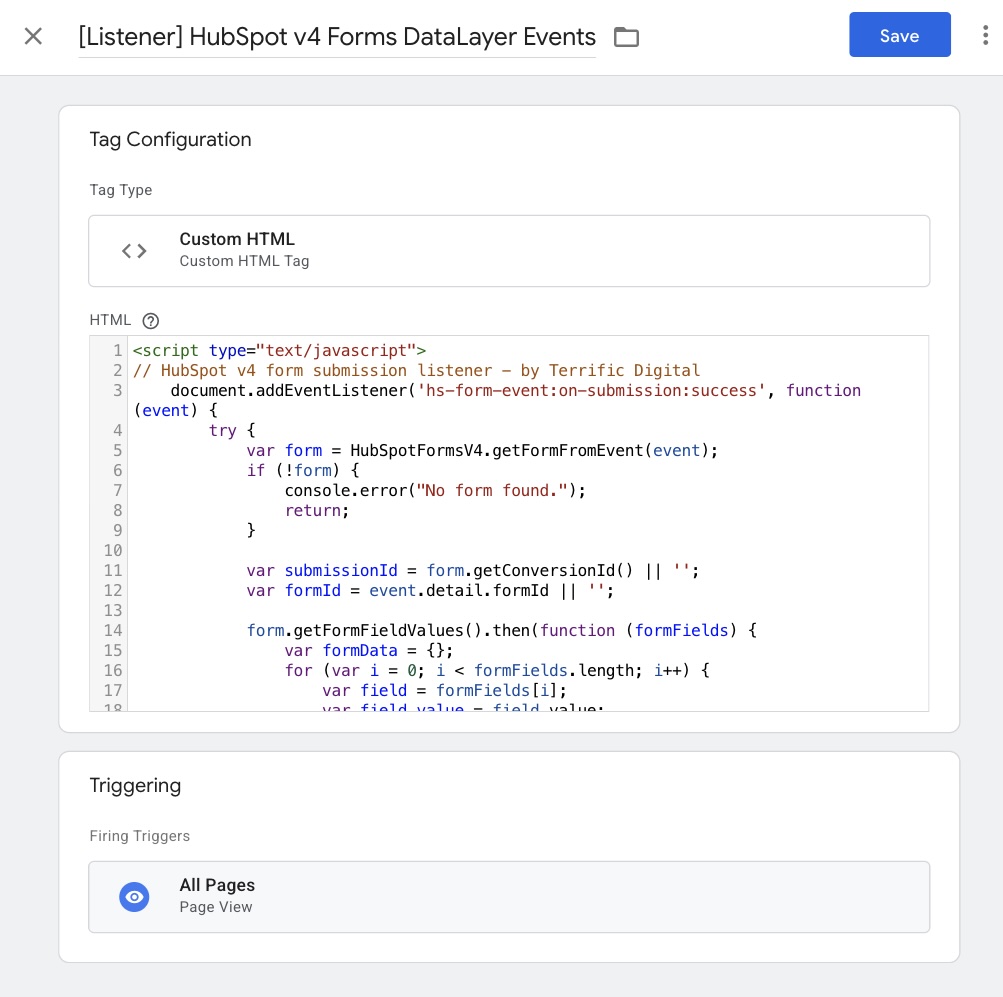
How to use in Google Tag Manager
- In GTM, create:
- A Custom Event Trigger for “form_submission” (fires on final submission).
- A Custom Event Trigger for “form_step” (fires when the user moves to the next step).
- Attach those triggers to your analytics/conversion tags.
- Test in GTM Preview Mode to confirm both events fire.
Why This Helps
This setup restores the kind of detailed tracking we used to have with legacy forms – but works with HubSpot’s new v4 multi-step forms.
You’ll see both full submissions and user progress through each step, all directly in your GTM workspace.
Huge shout out to Elad Levy from trackingchef.com and Creative Geek for helping us with this script!